What Is a Glow Effect?
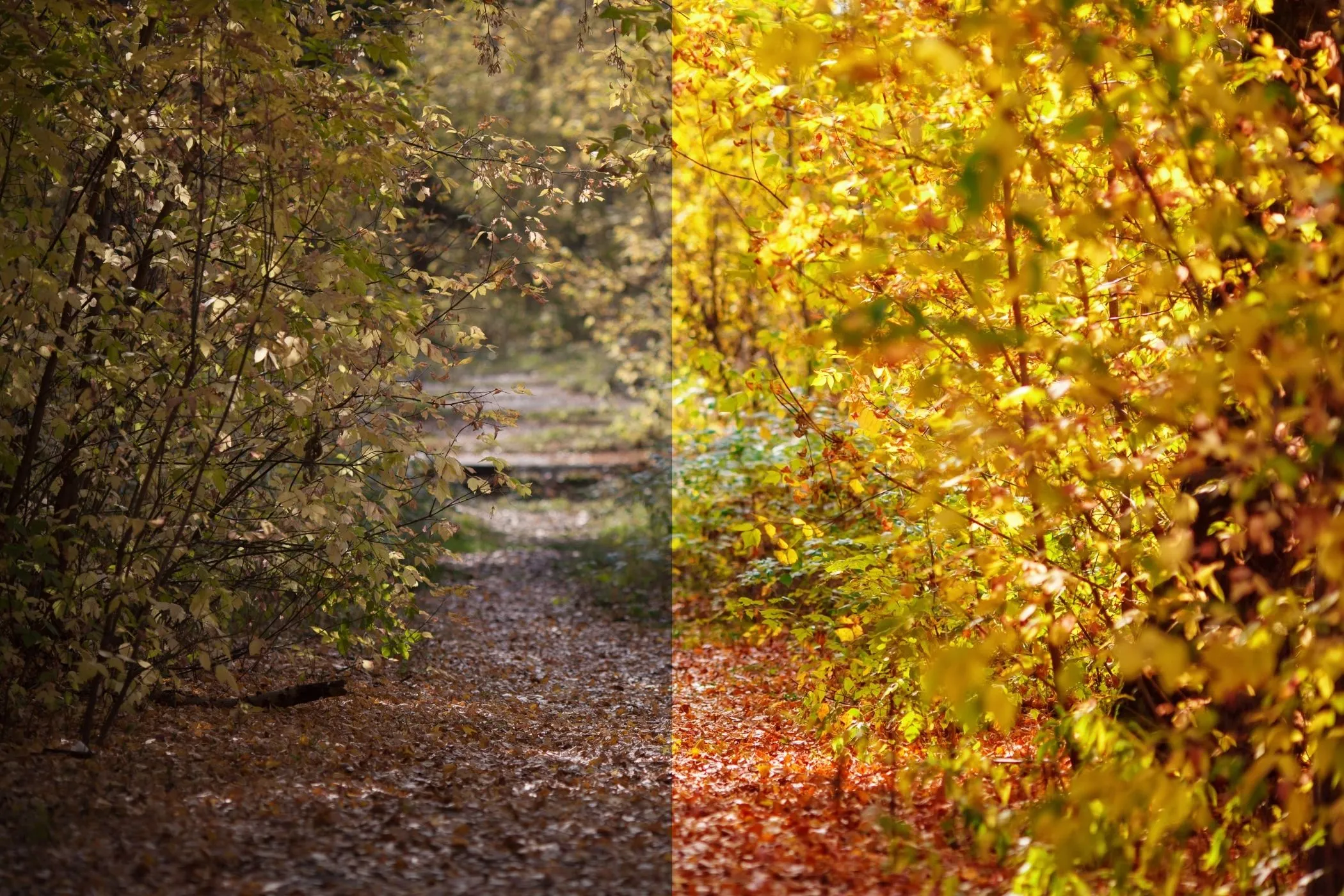
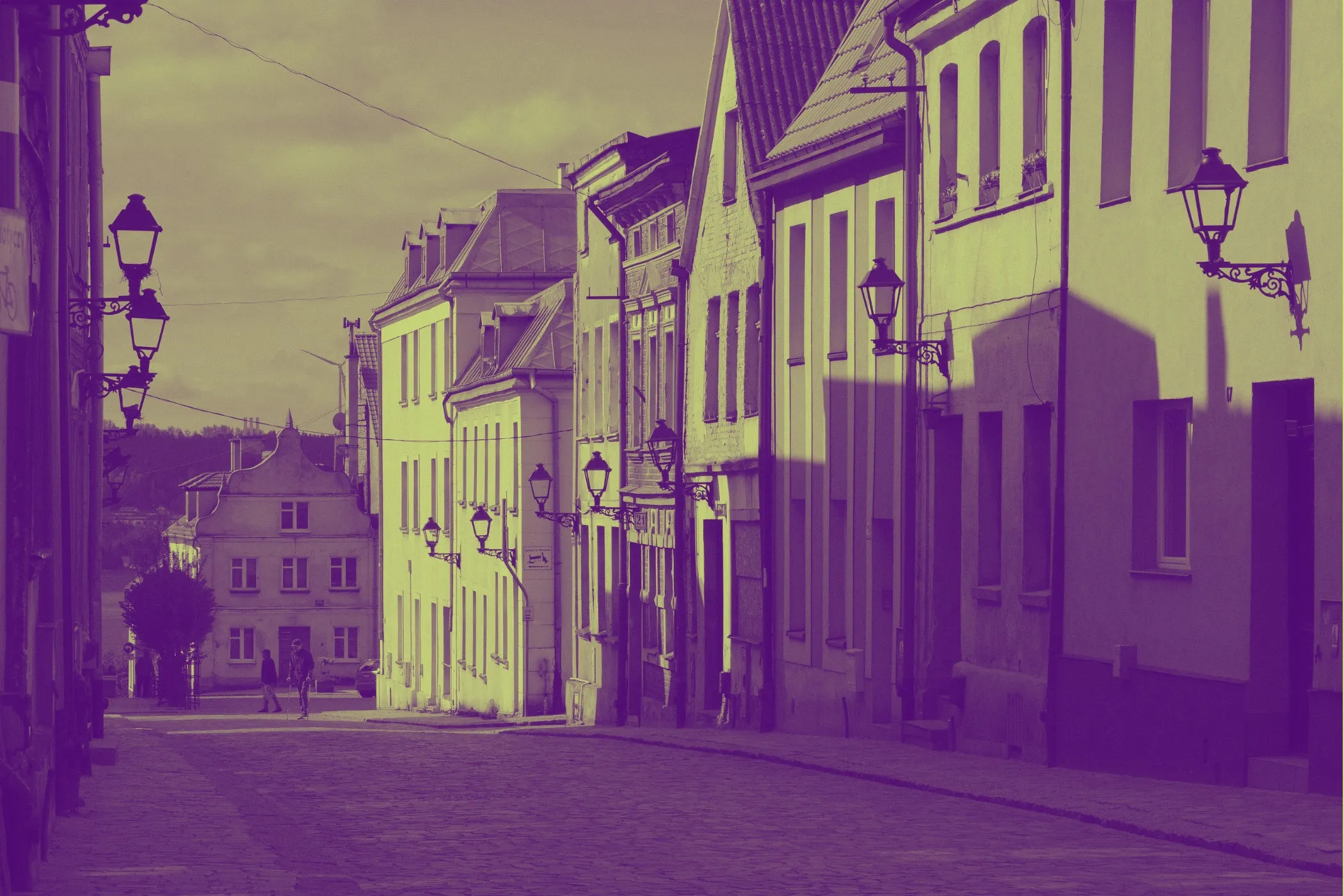
A glow effect (often called bloom) makes bright parts of an image look like they’re emitting light. It adds a soft halo and gentle haze around highlights—similar to the way real camera lenses and sensors respond to intense brightness.
Glow can be:
- Subtle and cinematic: a soft bloom that makes highlights feel smoother and more “filmic.”
- Bold and stylized: neon halos, sci‑fi lighting, dreamy haze, and surreal shine.
If you’ve ever seen street lights at night with a soft halo, or neon signs that “spill” light into nearby pixels—that’s bloom.
Where Glow Is Used
Glow is a staple across photography, design, and digital content because it naturally draws attention to what matters.
Photography
- Portraits: soften harsh specular highlights on skin and hair for a flattering look.
- Golden hour: enhance sunlit edges and reflections for a warm, romantic feel.
- Night scenes: boost headlights, lamps, reflections, and neon without manual retouching.
Design & Branding
- Hero images: make key bright elements pop (product edge highlights, shiny surfaces).
- Thumbnails: add punch and visual hierarchy.
- Logos/icons: create modern luminous accents for UI or social posts.
Creative Work
- Cyberpunk / neon: strong “Add” glow for signage and LEDs.
- Dreamy / retro: wide radius + low strength for haze and atmosphere.
- Motion graphics stills: bloom-like polish without heavy software.
Quick Start
- Upload a JPEG, PNG, or WebP (drag & drop, click, or paste).
- Set Threshold first until only the true highlights are affected.
- Increase Radius for spread (small = tight halo, large = haze).
- Adjust Strength to taste.
- Pick Screen for natural bloom or Add for punchy neon.
- Enable Soft highlight mask for smoother falloff.
- Export at full resolution.
Controls Explained
Strength
Controls how visible the glow layer is.
- 10–30: subtle polish for photos
- 30–60: noticeable cinematic bloom
- 60–100: stylized glow, neon, strong haze
Tip: If the image gets “milky,” lower Strength and raise Threshold.
Radius
Controls how far the glow spreads.
- 5–20: crisp halo (icons, text, LEDs)
- 20–60: classic bloom (photos, highlights)
- 60–120: dreamy haze (ethereal, retro)
Tip: Wider Radius often looks better with lower Strength.
Threshold
Controls which pixels are allowed to glow.
- 0–15: lots of glow (can wash out)
- 15–45: controlled bloom (most photos)
- 45–80: highlight-only glow (night lights, reflections)
Tip: If the whole image glows, Threshold is too low.
Glow Color
Tint the glow layer.
- White (#ffffff): realistic lens bloom
- Warm tints: cozy, golden look (e.g., #ffd6a5)
- Cool tints: icy, modern glow (e.g., #bde0fe)
- Neon tints: cyberpunk (e.g., #00e5ff)
Tip: Start with subtle tints for realism; go saturated for stylized work.
Blend Mode
Controls how glow adds light back to the image.
- Screen: soft and photographic (recommended for photos)
- Add: strong, punchy highlights (recommended for neon/graphics)
Tip: If whites blow out too easily, switch from Add to Screen.
Soft highlight mask
Feathers the threshold transition.
- ON: smoother, more natural glow falloff (best for photos)
- OFF: harder cutoff, crisper glow (best for graphic art)
Recommended Settings (Copy‑Friendly Recipes)
Try these as starting points, then tweak:
1. Natural cinematic bloom (portraits, daylight)
- Blend: Screen
- Threshold: 25–45
- Radius: 18–40
- Strength: 20–45
- Soft highlight mask: ON
- Color: White or subtle warm
2. Night lights (street lamps, headlights)
- Blend: Screen
- Threshold: 45–70
- Radius: 22–60
- Strength: 25–55
- Soft highlight mask: ON
- Color: White or cool tint
3. Neon pop (signs, LEDs, cyberpunk)
- Blend: Add
- Threshold: 35–65
- Radius: 10–30
- Strength: 50–90
- Soft highlight mask: OFF (or ON for smoother)
- Color: Saturated neon
4. Dreamy haze (retro, ethereal)
- Blend: Screen
- Threshold: 0–25
- Radius: 55–110
- Strength: 15–40
- Soft highlight mask: ON
- Color: Pastel tint
5. Product rim glow (edge emphasis)
- Blend: Screen
- Threshold: 35–60
- Radius: 12–28
- Strength: 20–40
- Soft highlight mask: ON
- Color: White
Troubleshooting (Common Problems)
“Everything glows / the image looks foggy”
- Raise Threshold
- Lower Strength
- Use Screen instead of Add
”Glow edges look harsh or cut out”
- Enable Soft highlight mask
- Slightly lower Threshold
- Increase Radius a bit
”My highlights blow out to pure white”
- Reduce Strength
- Switch to Screen
- Use a smaller Radius
”The glow is too subtle”
- Lower Threshold slightly
- Increase Strength
- Increase Radius
- Try Add blend mode
”Neon color doesn’t feel strong enough”
- Use Add
- Increase Strength
- Keep Radius modest (tight halos look brighter)
Perfect For
- Photography & portraits — gentle highlight rolloff and a filmic feel
- Night & neon scenes — emphasize lights, reflections, and signage
- Product & hero images — draw attention to edges and glossy materials
- Creative visuals — surreal, sci‑fi, dreamy, retro aesthetics
- Thumbnails & social — increase contrast and visual hierarchy quickly
Why Glow Helps
Glow can improve how an image reads at a glance:
- Focus: makes bright focal points and edges more noticeable
- Depth: simulates light behavior, adding dimensionality
- Mood: soft bloom feels romantic/cinematic; strong bloom feels energetic/futuristic
- Polish: subtle bloom can make an image feel more finished and professional
Privacy & Performance
- No uploads: images never leave your device
- Offline-friendly: works without internet after loading
- Instant preview: responsive live preview while you adjust settings
- Full-resolution export: final processing is applied at original size
How It Works
The glow effect is built from a few predictable steps:
-
Measure brightness (luminance) Each pixel’s perceived brightness is estimated.
-
Select highlights via Threshold Pixels below the threshold don’t contribute to glow; pixels above it do.
-
Optional soft masking Instead of a hard cutoff at the threshold, brightness fades in smoothly. This creates more natural transitions.
-
Blur the highlight layer Blurring spreads the highlights outward, forming the halo.
-
Blend glow back onto the original
- Screen produces soft, photographic bloom.
- Add produces intense, punchy glow.
-
Render locally with Canvas Everything uses the HTML Canvas API, with EXIF-aware decoding via
createImageBitmap({ imageOrientation: 'from-image' }).
Glossary
- Bloom / Glow: a halo of light around highlights
- Highlight: a bright area (light source, reflection, specular shine)
- Threshold: brightness cutoff that decides which pixels glow
- Radius: how far the glow spreads (blur size)
- Blend mode: how the glow layer combines with the original