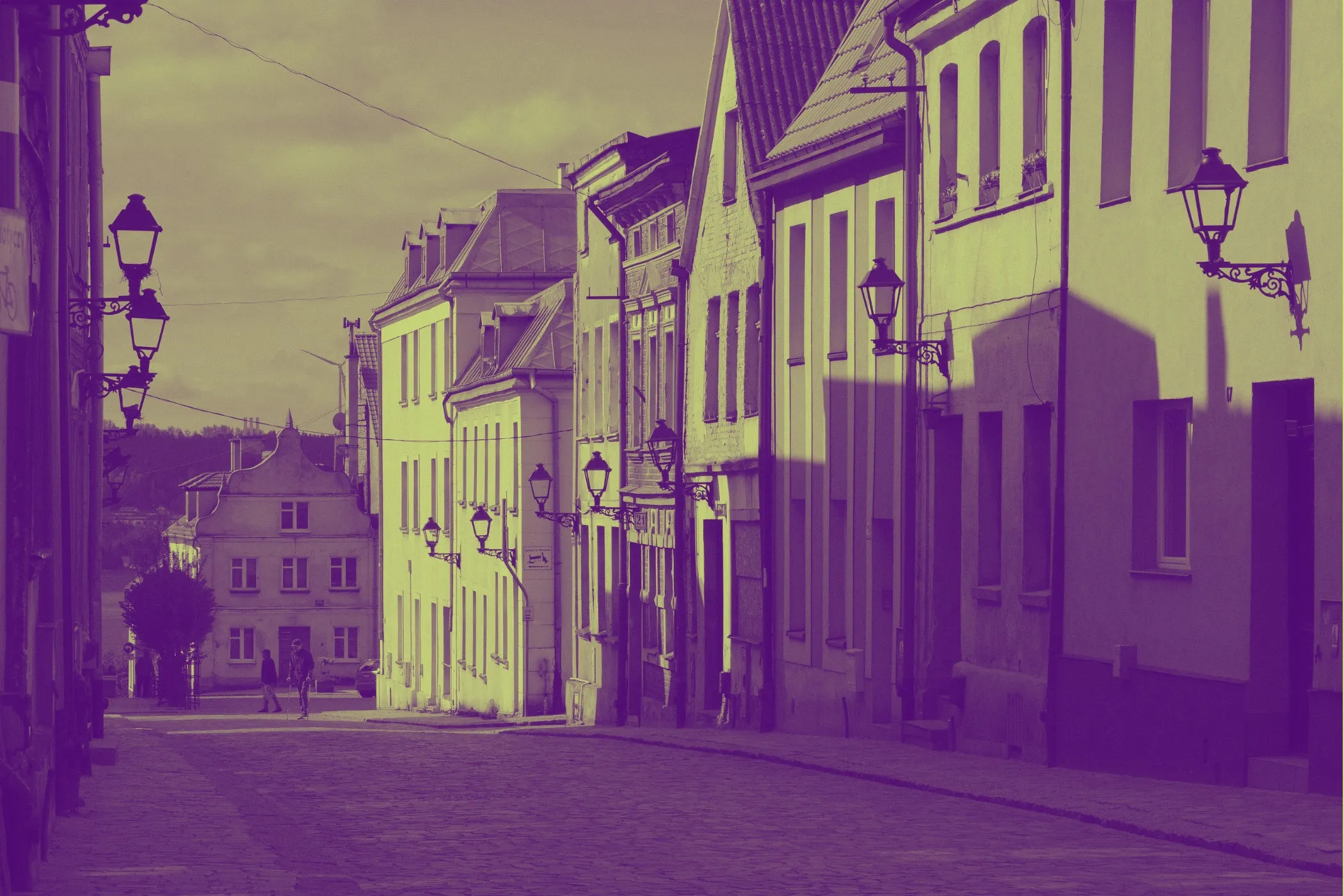
Engraving Effect in One Sentence
This tool turns a photo into an engraving-style print simulation by translating tones into etched hatch lines, shaping those lines with contour flow, and blending them over colored paper for a carved, antique print look.
What an Engraving Look Actually Feels Like
What makes this style attractive is the combination of:
- fine carved hatch lines
- layered crosshatching in darker areas
- strong edges and etched contours
- paper tone influencing the final print
- slight irregularity that keeps the result from looking sterile
That is why this look works so well for:
- portrait studies
- vintage poster art
- banknote-inspired illustrations
- stamp and seal graphics
- antique scientific or technical visuals
- editorial artwork with a historical feel
It gives digital images more craft, line structure, and engraved print character.
What This Tool Does
This tool creates an engraving-style image effect directly in the browser.
You can:
- choose an ink color and paper color
- start with curated presets such as Banknote Green, Copperplate, Steel Etching, Blueprint, and Carmine Stamp
- adjust Pre-Exposure to brighten or darken the tonal map before carving
- control Tone Contrast for softer or deeper engraving separation
- set Line Density for wider hatch spacing or finer etched detail
- shape the line field with Contour Flow so hatching follows the form of the image
- strengthen etched contours with Edge Etching
- add irregularity with Wear & Tear for a more printed, handled result
- use Reseed to generate a fresh line variation
- use Surprise me ✨ to explore useful combinations quickly
- export the final result instantly in full resolution
Everything runs locally on your device: private, fast, and easy to experiment with.
Workflow & Usage
1. Add an image
Drag & drop or click to select a JPEG, PNG, or WebP.
Images with readable contrast, clear shapes, and a strong main subject usually respond best.
2. Pick ink and paper
Start with Ink & Paper first.
Choose one of the built-in presets such as:
- Banknote Green
- Copperplate
- Steel Etching
- Blueprint
- Carmine Stamp
Or build your own using:
- Ink Color
- Paper Color
This step defines the historical mood of the print. A dark green or steel-blue ink feels banknote-like, while warm brown or carmine tones feel more antique or stamped.
3. Shape the carved tones
Move to Carving Controls next:
- Pre-Exposure brightens or darkens the tonal map before the hatch structure is created
- Tone Contrast changes how strongly light and dark areas separate into engraved density
- Line Density controls how fine or open the hatch system feels
- Contour Flow bends the line field so it follows the broader volume of the subject
- Edge Etching reinforces contours and major boundaries
- Wear & Tear adds subtle jitter and imperfection to keep the result from looking too digital
This is where the image shifts from a recolored photo into something that feels engraved, etched, or printed from a plate.
4. Reseed or use Surprise Me
- Reseed gives you a new carved-line variation without changing your main settings
- Surprise me ✨ jumps into curated tone and material combinations so you can find strong directions quickly
5. Download
When you are happy with the result, export instantly.
The preview is optimized for speed, while the downloaded image renders at full resolution.
Understanding the Controls
Ink & Paper
The material combination defines the overall character of the effect.
Unlike a standard black-and-white filter, this style depends heavily on the relationship between:
- the ink color
- the paper color
A warmer paper makes the image feel older and more tactile. A cooler paper feels more technical or engraved in steel. A bright dark ink creates stronger plate-like contrast. A lighter ink on deep paper can create blueprint-style results.
Ink Color
This is the carved printing color.
It is used for:
- the hatch lines
- crosshatched shadows
- etched contours
- the overall printed character
Dark green, black-brown, deep navy, steel blue, and carmine tones often work especially well.
Paper Color
Paper color is not just a background.
It changes the feeling of the whole print because the engraved lines are blended over it.
Use warm paper for:
- antique engraving moods
- old books and documents
- softer editorial prints
Use cool or gray paper for:
- steel engraving looks
- technical illustrations
- colder, more precise imagery
Use deep blue paper with light ink for:
- blueprint-like prints
- reversed technical styles
- cyanotype-adjacent aesthetics
Pre-Exposure
Pre-Exposure shifts the brightness of the image before the hatch system is created.
What it changes visually:
- lower values = darker, heavier engraved shadows
- higher values = brighter, more open paper areas
Use it when:
- the result feels too dark and clogged
- you want more paper showing through
- the subject needs more breathing room
Practical ranges:
- 0–30 → darker, denser engraving
- 30–60 → balanced tonal treatment
- 60–85 → brighter and more open etched result
- 85–100 → very lifted, paper-forward interpretation
Tone Contrast
Tone Contrast controls how strongly the image separates into lighter and darker engraved areas.
What it changes visually:
- lower values = smoother tonal flow and softer carving
- higher values = deeper etched separation and punchier shadows
Practical ranges:
- 0–25 → softer antique treatment
- 25–55 → balanced engraving contrast
- 55–80 → stronger carved depth
- 80–100 → very bold, dramatic intaglio look
Line Density
Line Density changes how many lines are used across the image.
- lower values = wider spacing, more open and graphic output
- higher values = tighter, finer hatching and more intricate detail
Practical ranges:
- 1–20 → bold, open hatch structure
- 20–45 → balanced etched detail
- 45–70 → fine engraving feel
- 70–100 → very dense, intricate linework
Contour Flow (Warp)
Contour Flow controls how much the hatch lines follow the larger tonal form of the image.
What it changes visually:
- lower values = straighter, more mechanical line behavior
- higher values = lines bend with the volume of the subject for a more carved or topographic feel
This is one of the most distinctive controls in the tool. It can make the result feel more like:
- a rigid technical plate
- a hand-engraved portrait
- a flowing antique etching
Practical ranges:
- 0–20 → controlled, straighter hatching
- 20–50 → balanced contour shaping
- 50–80 → expressive engraved flow
- 80–100 → very warped, stylized line behavior
Edge Etching
Edge Etching strengthens contours and important boundaries with darker engraved structure.
What it changes visually:
- lower values = softer edges and more tone-led results
- higher values = stronger etched boundaries and clearer subject separation
This is especially useful for portraits, objects, and architecture where you want a stronger engraved silhouette.
Practical ranges:
- 0–20 → minimal contour emphasis
- 20–50 → balanced etched edges
- 50–80 → strong engraving contour work
- 80–100 → very assertive etched outlines
Wear & Tear (Jitter)
Wear & Tear adds subtle irregularity to the hatch lines so the result feels more physical and less perfectly plotted.
It is useful for:
- old print character
- handmade or worn plate energy
- softer human imperfection
- breaking up overly clean line rhythm
Lower values produce:
- cleaner, more controlled engraving
- tighter line consistency
- more formal print behavior
Higher values produce:
- rougher line wobble
- more organic variation
- more antique or handled-print energy
Reseed
Reseed regenerates the random line variation.
It is useful because engraved or printed imagery often looks better when the fine irregularities are not perfectly identical every time. A new seed changes the subtle jitter and line behavior while preserving your overall direction.
Surprise Me ✨
Surprise Me is a fast creative shortcut.
It randomizes:
- ink and paper direction
- exposure
- contrast
- line density
- contour flow
- wear and edge treatment
- line variation
This is useful when:
- you want inspiration fast
- you are not sure which material mood fits the image
- you want to discover combinations you would not dial manually
Curated Looks You Can Create
Banknote Portrait
- Ink: deep green or black-green
- Paper: light cool cream
- Pre-Exposure: 45–60
- Tone Contrast: 55–75
- Line Density: 45–70
- Contour Flow: 35–60
- Edge Etching: 35–65
- Wear & Tear: 10–25
Best for:
- portraits
- emblem-like artwork
- money-print-inspired graphics
Antique Copperplate Print
- Ink: dark brown or near-black sepia
- Paper: warm ivory or parchment
- Pre-Exposure: 40–60
- Tone Contrast: 40–70
- Line Density: 35–60
- Contour Flow: 40–70
- Edge Etching: 25–55
- Wear & Tear: 20–40
Best for:
- vintage illustrations
- editorial prints
- old-book aesthetics
Steel Engraving Look
- Ink: charcoal, slate, or navy-black
- Paper: cool gray or pale steel
- Pre-Exposure: 45–65
- Tone Contrast: 55–80
- Line Density: 50–80
- Contour Flow: 20–45
- Edge Etching: 40–70
- Wear & Tear: 5–20
Best for:
- architecture
- objects
- technical-feeling editorial imagery
Blueprint Reverse Print
- Ink: white or pale cyan
- Paper: deep blue
- Pre-Exposure: 50–75
- Tone Contrast: 45–70
- Line Density: 30–60
- Contour Flow: 20–50
- Edge Etching: 20–45
- Wear & Tear: 10–30
Best for:
- diagrams
- technical visuals
- experimental reversed etching styles
Stamp / Seal Graphic
- Ink: carmine, burgundy, or oxidized red
- Paper: very light pink or warm off-white
- Pre-Exposure: 35–55
- Tone Contrast: 60–85
- Line Density: 20–45
- Contour Flow: 15–40
- Edge Etching: 35–70
- Wear & Tear: 15–35
Best for:
- badges
- seals
- poster marks
- bold heritage-style graphics
Best Settings
Use these as starting points rather than rigid rules.
Balanced Classic Engraving Look
- Pre-Exposure: 45–60
- Tone Contrast: 50–70
- Line Density: 35–60
- Contour Flow: 30–55
- Edge Etching: 25–50
- Wear & Tear: 10–25
Best for:
- most portraits
- posters
- product shots
- everyday experimentation
High-Detail Intaglio Print
- Pre-Exposure: 40–60
- Tone Contrast: 60–85
- Line Density: 55–85
- Contour Flow: 25–50
- Edge Etching: 40–70
- Wear & Tear: 5–18
Best for:
- intricate prints
- architecture
- banknote-style detail
- technical plate aesthetics
Soft Antique Illustration
- Pre-Exposure: 50–70
- Tone Contrast: 35–60
- Line Density: 25–45
- Contour Flow: 40–70
- Edge Etching: 20–40
- Wear & Tear: 18–38
Best for:
- old-book styles
- poetic editorials
- softer engraved moods
Bold Etched Poster
- Pre-Exposure: 35–55
- Tone Contrast: 65–90
- Line Density: 20–45
- Contour Flow: 20–50
- Edge Etching: 45–80
- Wear & Tear: 10–30
Best for:
- strong graphics
- emblems
- poster treatments
- identity-style artwork
Best Images for an Engraving Effect
This effect usually looks strongest when the source image has:
- a clear main subject
- readable contrast
- strong silhouettes or outlines
- lighting that creates recognizable form
The best source types are usually:
Portraits
Faces, profiles, and bust-style images respond beautifully because crosshatching can turn light and shadow into elegant carved structure.
Architecture and landmarks
Buildings, facades, towers, and bridges often work especially well because the etched lines reinforce form, repetition, and shadow.
Product and still-life shots
Objects with clean contours and readable volume can become refined engraving-style illustrations.
Editorial and symbolic imagery
Statues, seals, insignias, heritage visuals, and historical-feeling imagery often translate especially well.
Less ideal:
- muddy low-contrast images
- very noisy phone photos
- scenes with too many tiny competing details
- images that depend on soft full-color realism
Perfect For
- engraved portraits
- banknote-inspired graphics
- vintage editorial artwork
- seal and stamp designs
- antique poster treatments
- technical print styles
- historical moodboards
- heritage branding visuals
Tips for Better Results
Start with material mood first
The combination of ink color and paper color defines the look more than anything else.
Get the material feeling right first, then tune density and flow.
Use Line Density before changing everything else
If the image feels too empty or too clogged, adjust Line Density before reaching for every other slider.
It changes how finely the image is described.
Use Contour Flow for style, not rescue
If the subject is unclear, first fix it with Pre-Exposure, Tone Contrast, or Edge Etching. Then use Contour Flow to add engraving personality.
Stronger edges help portraits and architecture
If a face, building, or object feels weak, increase Edge Etching before making the line field overly dense.
Wear & Tear works best in moderation
A little jitter makes the print feel older and more physical. Too much can weaken the elegance of the engraving.
Reseed before abandoning a direction
Sometimes the materials and tone settings are right, but the exact line variation feels off. Try Reseed before rebuilding the whole effect.
Common Problems (Quick Fixes)
“It looks too dark.” Raise Pre-Exposure first. If needed, lower Tone Contrast slightly.
“It looks too flat.” Increase Tone Contrast and add more Edge Etching.
“The lines feel too sparse.” Raise Line Density.
“It looks too mechanical.” Increase Contour Flow a bit and add some Wear & Tear.
“I want more crisp engraved definition.” Increase Edge Etching, keep Wear & Tear lower, and use a darker ink.
“I want it older and more tactile.” Use warmer paper, a sepia or brown-black ink, moderate flow, and a little extra Wear & Tear.
How It Works
This effect is generated entirely in the browser.
- Your image is decoded locally.
- The image is converted into a tonal brightness map.
- A softened volume map is built so hatch lines can respond to broader light and shadow shapes.
- Brightness is shaped with Pre-Exposure and Tone Contrast.
- Multiple angled hatch layers are generated to simulate engraved crosshatching.
- Contour Flow warps those hatch lines so they follow the image form more organically.
- Edge Etching strengthens major contours and darker structural boundaries.
- Wear & Tear adds subtle line irregularity for a less rigid, more print-like result.
- The engraved ink is blended over the chosen paper color, and the preview is rendered at a capped size for responsiveness while Download renders the final export at full resolution.
Why This Looks Better Than a Basic Sketch Filter
A basic sketch filter usually turns an image into outlines or simple grayscale shading.
A convincing engraving-inspired image needs more than edge tracing. It needs:
- layered hatch behavior
- tonal density changes
- contour-aware line flow
- paper influence
- slight irregularity
- a believable printed relationship between ink and substrate
That is what gives the image the feeling of being engraved or etched, not just drawn over.
Design Notes
The best engraving-style images usually balance four things:
- strong material choices
- readable subject separation
- enough line density to feel carved
- enough restraint to stay elegant
Too little density and the result can feel under-described. Too much density and it can become muddy. Too little edge structure and the image may feel soft. Too much edge emphasis and it can become harsh. Too little flow and it looks mechanical. Too much flow and it can feel overly stylized.
That balance is what makes this kind of effect useful for both refined editorial design and more overtly vintage or heritage-inspired visuals.
If you want one reliable “looks good fast” starting point:
Dark green, sepia-black, or steel-blue ink + light warm or cool paper + Pre-Exposure 45–60 + Tone Contrast 55–75 + Line Density 35–60 + Contour Flow 30–55 + Edge Etching 25–50 + Wear & Tear 10–25
That range usually creates a rich, readable, recognizable engraving-style result on portraits, buildings, and bold graphic images.