ASCII Art in One Sentence
This tool converts a photo into ASCII art by sampling the image into a grid, mapping brightness to characters, and rendering the result as a live preview—then lets you copy it as text or download it as an image, privately in your browser.
What You Can Create With ASCII Art
ASCII art is surprisingly versatile:
- Portraits with character: detailed, expressive “text photos”
- Retro terminal vibes: classic monochrome output with bold contrast
- README banners: copy-friendly text art for GitHub/Docs
- Blocky poster looks: chunky “█▓▒░” styles for graphic results
- Binary / minimal art: playful looks using tiny character sets
- Overlay graphics: transparent PNG ASCII layers for design comps
Everything updates instantly as you tweak settings.
Workflow & Usage
1. Add an image
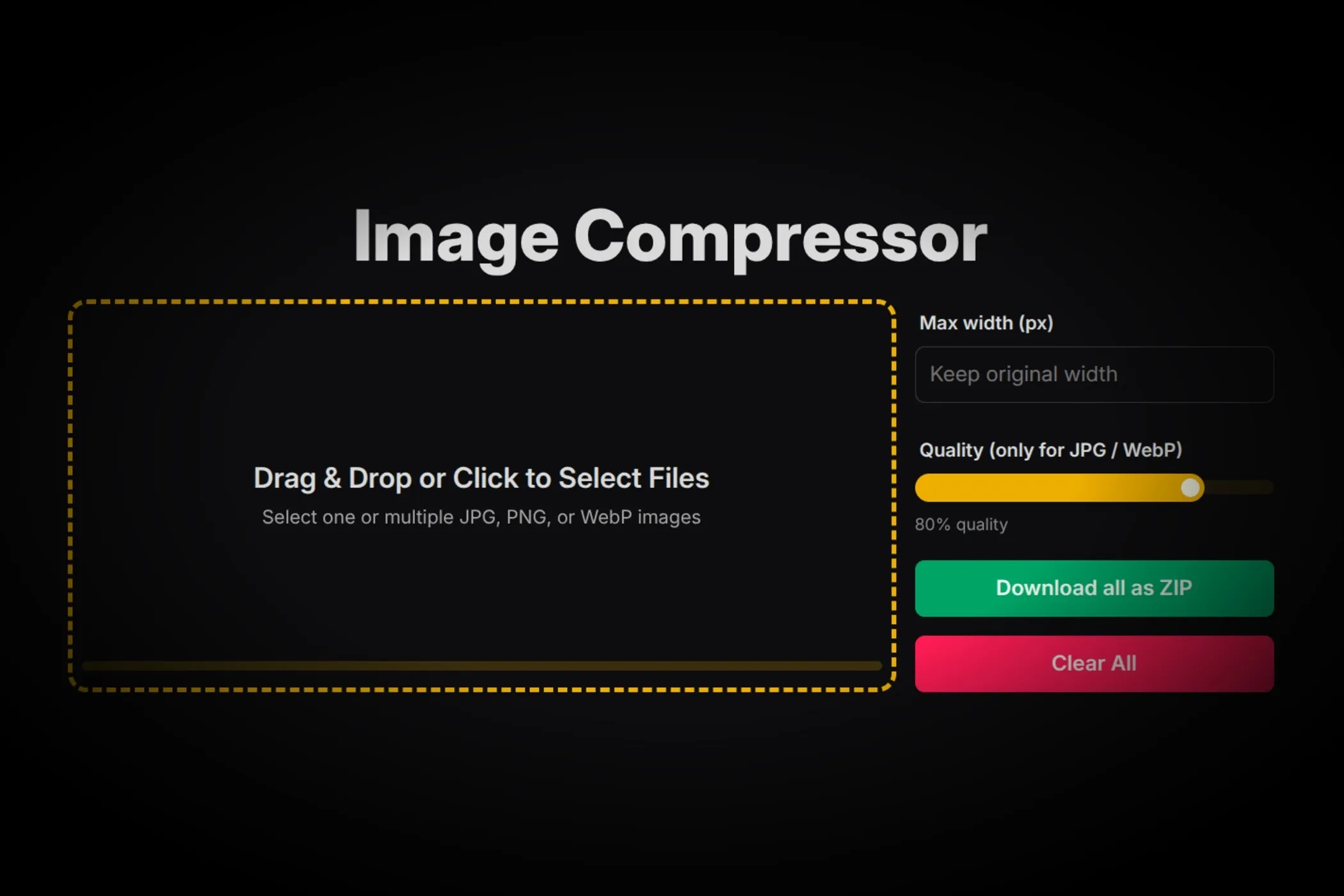
Drag & drop or click to select a JPEG / PNG / WebP.
2. Choose a character set
Pick a Charset (the palette of characters used to draw the image).
- Dense (Detailed) is usually best for photos and faces.
- Blocks is great for bold, high-contrast styles.
3. Set the detail level
Use Detail (columns) to control resolution.
- More columns = finer detail (but smaller characters)
- Fewer columns = larger characters and a more stylized look
4. Tune tone and readability
Use Contrast and Brightness to reveal the subject clearly, then adjust:
- Invert if you prefer light-on-dark vs dark-on-light
- Character aspect / Line height if the output looks stretched
5. Pick color mode
- Color from image for vivid image-like ASCII
- Turn it off for Monochrome, then choose Text color
6. Copy or download
- Copy ASCII (text): perfect for plain-text contexts (README, terminal)
- Download: saves the rendered output as an image (PNG when transparent)
Understanding the Controls
Charset
The charset controls the “texture” of the art.
- Dense: smooth gradients, best detail
- Standard / Minimal: cleaner shapes, less noise
- Blocks: bold, graphic output
- Retro: stylized vintage look
- Binary: playful “10” effect
Detail (columns)
This is the most important knob.
- 80–140: great general range
- 140–200: detailed portraits
- 40–80: chunky poster / censor vibe
Font size
Controls the output character size in the rendered image.
- Larger = bolder, chunkier look
- Smaller = more “printed” density
Line height
Changes vertical spacing between rows.
- Lower = tighter, more compact
- Higher = more readable spacing
Character aspect (H/W)
Characters aren’t square. This setting compensates so circles don’t become ovals.
- If the result looks too tall, lower the aspect slightly
- If it looks too squashed, raise it
Contrast & Brightness
These control the mapping from image luminance to characters.
- Increase Contrast when the output looks muddy
- Adjust Brightness if everything is too dark or too washed out
Invert
Swaps the mapping so bright areas become dark characters (and vice versa). Useful for matching dark UIs or flipping the overall mood.
Color from image
When enabled, each character is tinted from the original pixel colors.
- Best for sharing as an image
- Turn off for true text art and maximum readability
Text color (monochrome)
Only used when Color from image is off. Great for terminal-style green, brand colors, or high-contrast white/black.
Transparent background
Renders without a background fill, ideal for overlays.
- Forces PNG on download to preserve transparency.
“Surprise Me” Feature
Hit Surprise me ✨ to explore styles quickly. It randomizes settings like charset, detail, contrast, and color mode—then you can fine-tune from a good starting point.
Best Settings
Use these as starting points.
Clean portrait ASCII (detailed)
- Charset: Dense (Detailed)
- Detail (columns): 140–200
- Contrast: 115–145%
- Brightness: -5 to +5%
- Color from image: On (or Off for true text)
Retro terminal (copy-friendly)
- Charset: Standard or Minimal
- Detail (columns): 90–140
- Contrast: 120–160%
- Color from image: Off
- Text color: #00FF9C (or your favorite terminal green)
Bold block poster
- Charset: Blocks
- Detail (columns): 40–90
- Contrast: 130–180%
- Invert: Optional
README banner (plain text)
- Charset: Standard / Minimal
- Detail (columns): 80–120
- Color from image: Off
- Use Copy ASCII (text) and paste into your markdown editor
Perfect For
- Developers: READMEs, terminal art, docs and demos
- Designers: quick retro looks and overlay text graphics
- Creators: social posts, thumbnails, and stylized portraits
- Brand visuals: consistent monochrome output with chosen text color
Tips for Better Results
- Start by setting columns, then tune contrast—detail won’t help if tone mapping is off.
- For faces, slightly higher contrast usually helps edges and features read better.
- If things look distorted, adjust character aspect first, then line height.
- For plain-text sharing, use monochrome and keep columns in a readable range (80–140).
Common Problems
“The output looks stretched.” Adjust Character aspect and Line height. Different fonts render differently, so small tweaks matter.
“It’s too noisy / messy.” Lower columns a bit, or switch to Standard / Minimal charset. Reduce contrast if edges look harsh.
“It’s too dark / too faint.” Increase Brightness slightly and then re-balance Contrast.
“Color mode looks patchy.” Try a slightly lower column count so characters get more visual weight, or switch to monochrome for a cleaner read.
How It Works
This effect is generated entirely in the browser:
- Your image is decoded locally (orientation supported).
- The tool downsamples it into a grid based on columns and character aspect.
- Each cell’s luminance is adjusted with contrast/brightness.
- Luminance is mapped to a character from the chosen charset (optionally inverted).
- The output is rendered on a canvas using a monospace font—either monochrome or colored from the original pixels.
- Preview is capped for speed; Download renders at full quality. Copy exports the ASCII as plain text.