Web Image Formats Explained: PNG — The Format That Keeps Things Crisp
The second part of our series on web image formats. A clear, practical guide to why PNG was created, how lossless compression works, and when this format is the best choice for sharp edges, text, and transparency.
Fri Nov 21 2025 • 5 min read
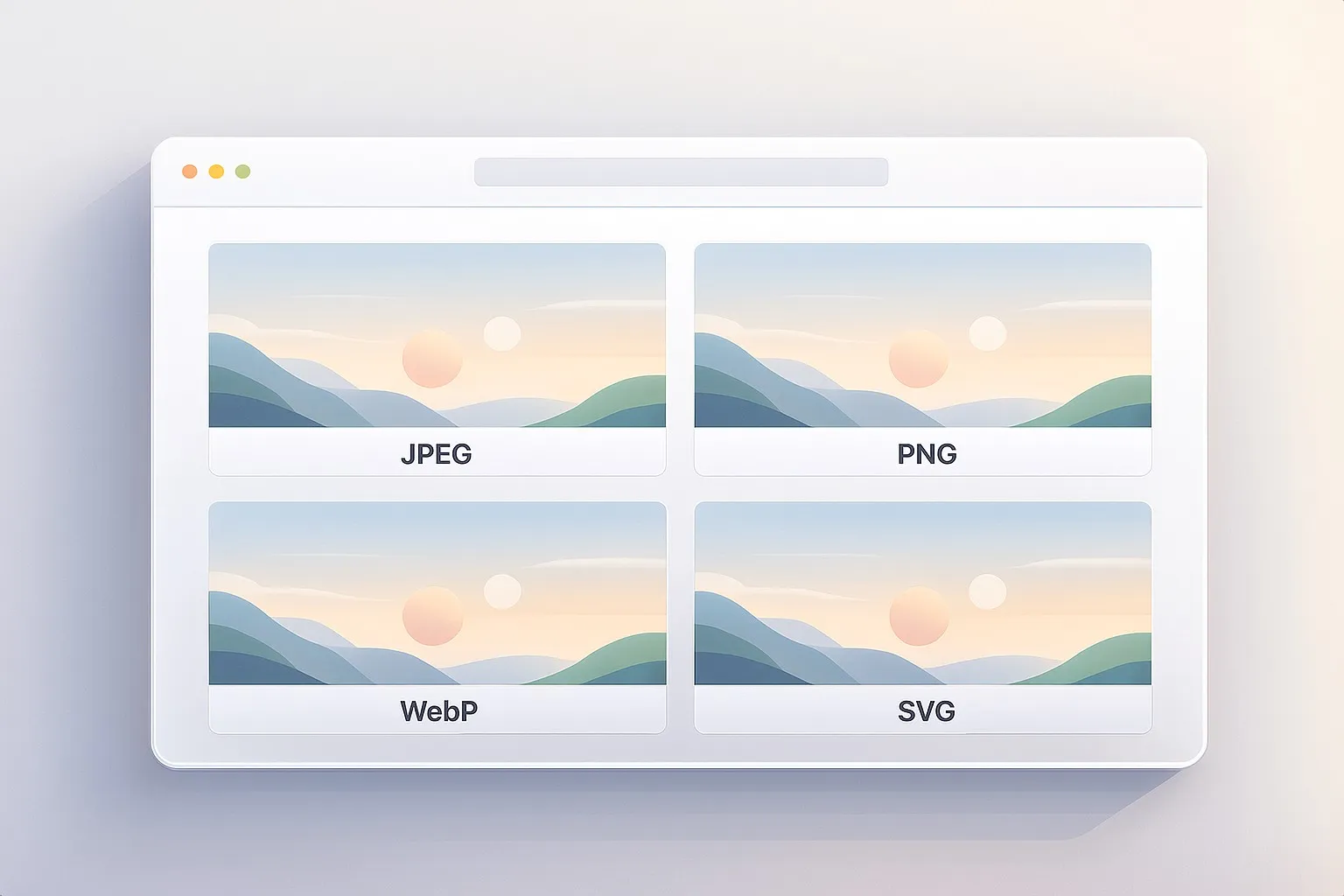
This is the second article in the series Web Image Formats Explained. In the previous part, we explored JPEG — why it still powers most photos online and how progressive JPEGs make pages feel faster. If you missed it, start there for a smoother flow.
👉 Previously: Web Image Formats Explained — JPEG
If JPEG is the workhorse for photos, PNG is the guardian of clarity. Whenever your design depends on sharp edges, clean lines, readable text, or transparent elements blending naturally into different backgrounds, PNG is usually the tool that keeps everything looking intentional.
But understanding PNG is less about memorizing rules and more about understanding what it was built for. Let’s walk through where it came from, how it works, and when it’s the right (or wrong) choice for the web.
Why PNG Exists
PNG stands for Portable Network Graphics — and the name says a lot about its mission. It was designed in the mid-90s, right as the web was growing rapidly and a quiet legal issue began to brew.
Back then, developers were using the GIF format for anything that needed transparency or crisp detail. But GIF relied on the LZW compression algorithm, which was patented. As the web became mainstream, Unisys (the patent holder) began enforcing licensing fees. Suddenly, the format everyone depended on was no longer free.
The web needed an open successor.
A group of independent developers, image experts, and contributors across early internet communities came together to design a replacement — not just a clone of GIF, but something more modern and more flexible.
Their goals were surprisingly forward-thinking:
- No patents, no licensing, no legal traps. PNG would be open and free forever.
- Full alpha transparency — not just on/off transparency like GIF.
- True color support — millions of colors instead of 256.
- Lossless compression to preserve every pixel.
- Predictable display everywhere, regardless of browser or device.
They weren’t trying to compete with JPEG. PNG wasn’t meant for photographs. It was meant for precision.
And that’s exactly where it excelled.
How PNG Works
To understand PNG, it helps to understand the idea of lossless compression.
A “lossy” format like JPEG achieves small files by discarding details it believes you won’t notice. PNG takes the opposite approach: it reduces file size without removing anything.
Think of it like folding a shirt versus cutting pieces off to make it smaller. PNG folds neatly — nothing is lost.
Let’s unpack how this actually works.
PNG looks for patterns
Images often contain areas where pixels repeat or shift predictably — like a flat background, a block of color, or a gradual change.
Instead of saving every pixel, PNG stores the patterns. The more predictable the image, the smaller the file.
It applies a “filter” to each row
Before compressing, PNG transforms pixel data into a format that makes patterns easier to spot. A filter might say:
- “Store only the difference between this pixel and the previous one.”
- “Predict the next pixel based on the one above it.”
This makes the data more uniform, which compresses extremely well.
PNG compresses the data using DEFLATE
DEFLATE is the same algorithm used in ZIP files. It packs repeated patterns tightly, turning long sequences of predictable data into compact representations.
The browser reconstructs the image perfectly
When displayed, the browser reverses the filters and restores the image exactly. Not almost. Not approximately. Exactly.
Why PNG sometimes becomes huge
Photographs are chaotic. Every pixel is different. Shadows vary. Textures shift. Noise appears everywhere.
PNG can’t simplify that kind of variation — because simplifying would mean losing data, which PNG never does. So it stores everything as-is.
This is why a photo saved as PNG might be 5–10× larger than one saved as JPEG.
Why PNG excels at crisp graphics
When an image contains flat colors, sharp edges, or solid shapes, the patterns become extremely predictable. That’s when PNG’s compression truly shines.
You can shrink images, including PNGs, without losing quality using the Image Compressor.
Why PNG Keeps Things Perfectly Sharp
PNG’s defining trait is that it keeps every pixel intact. No smoothing. No blending. No averaging.
If you export:
- a logo,
- an icon,
- a UI button,
- a small diagram,
- or a screenshot with text,
PNG ensures the edges stay crisp and the colors stay exact.
Designers rely on this predictability, especially for brand assets and interface elements where clarity and consistency matter.
When PNG Is the Right Choice
PNG is perfect when clarity or transparency is essential.
A few examples:
- Logos that need to work on any background
- Icons and UI elements
- Diagrams, badges, and infographics
- Screenshots with fine text
- Images with soft shadows or semi-transparent edges
If it needs to stay pixel-perfect or blend naturally with the page, PNG is usually the safest choice.
When PNG Becomes a Problem
PNG struggles the moment an image becomes “photographic.” A picture of a person, a product, or a landscape contains too much variation for PNG to compress efficiently.
This leads to unnecessarily large files — sometimes several megabytes.
A simple rule:
If it looks like a photo, it shouldn’t be a PNG.
JPEG or WebP will give you much smaller files with no visible loss.
You can convert heavy PNGs to JPEG or WebP using the Image Converter.
Transparency: PNG’s Superpower
PNG supports full alpha transparency — meaning each pixel can be anywhere between fully opaque and fully transparent.
This is essential for:
- logos on varied backgrounds,
- soft drop shadows,
- UI overlays,
- stickers and badges,
- outlines that blend naturally.
JPEG can’t do this at all, and while WebP can, PNG remains the most reliable and widely supported option.
When to Consider Other Formats
PNG is excellent for clarity but terrible for photos. JPEG excels with photos but can’t handle transparency. WebP overlaps both formats: it can handle transparency like PNG while keeping file sizes closer to JPEG.
That’s why WebP became the modern “default” for many sites.
And that’s where we’re heading next.
In the next article of Web Image Formats Explained, we explore WebP, Google’s modern format designed to blend sharpness, efficiency, and flexibility.